Add species keywords to Lightroom Classic automatically
Specio identifies the animals in your Lightroom Classic catalogue and writes each confirmed species back as a keyword, with its full taxonomy, in your language. Your own keywords stay untouched.
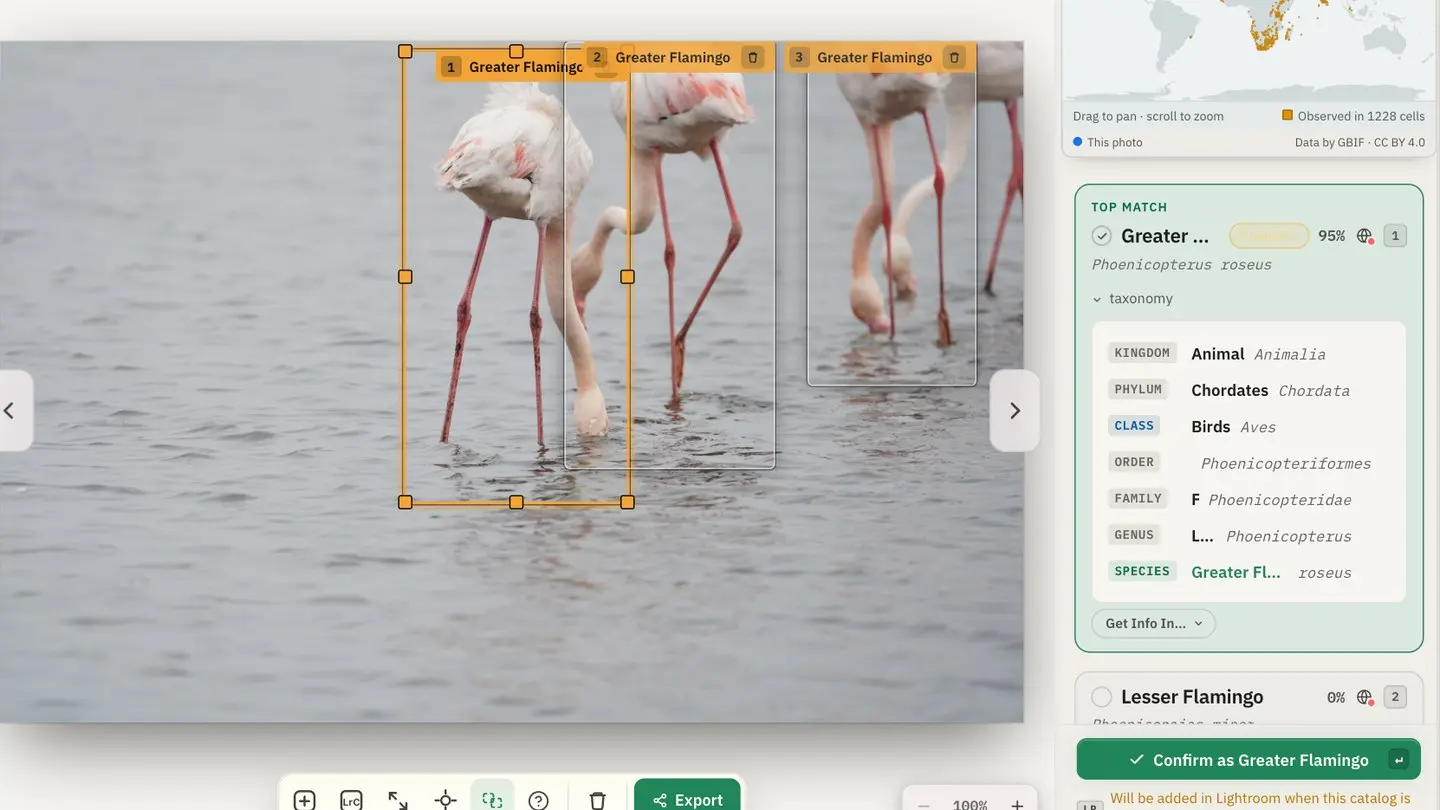
Lightroom Classic is where many wildlife photographers keep their life's work — and its keyword list is where that work becomes searchable. The trouble is filling it. Typing "Eurasian Hoopoe" on two hundred frames, then remembering to add the order and the family, is exactly the kind of chore that never quite gets done.
Specio connects to your catalogue, identifies the animals in it, and writes the species you confirm straight back into Lightroom — as if you had typed them yourself.
The problem with species keywords
A useful species keyword is more than a name. You want the common name you actually search for, in your language. You want the classification above it, so that "all the herons" or "every bird of prey" is one click away. And you want it consistent across ten years of catalogues — not "wolf" in one place, "Wolf" in another and "Canis lupus" in a third.
Doing that by hand is slow. Doing it with a script means trusting something that writes into your catalogue without asking.
How Specio does it
A plug-in that installs itself
On first launch, tell Specio your photos live in Lightroom Classic. It installs and enables its plug-in for you, then asks you to launch — or restart — Lightroom, since a plug-in only loads at startup. A green indicator and your catalogue's name confirm the connection.
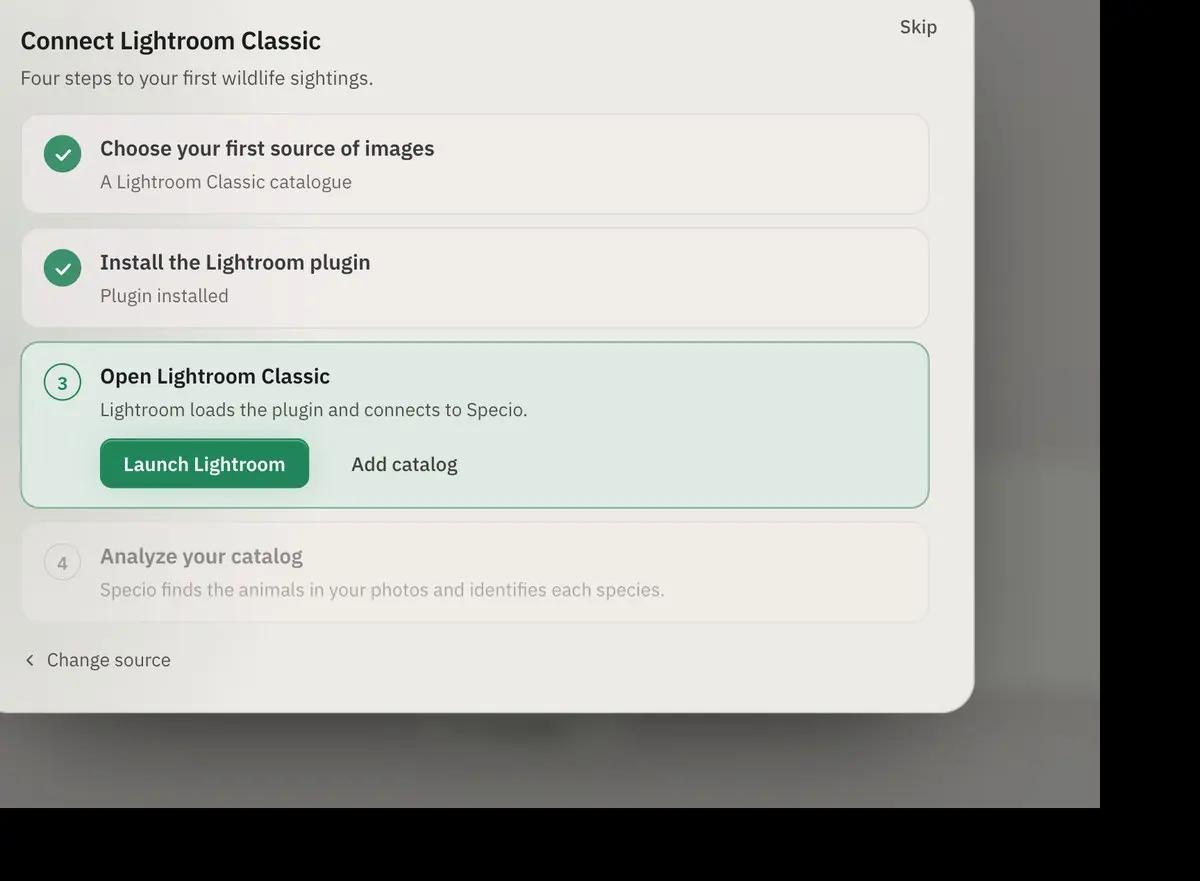
Specio works with Lightroom Classic, the desktop catalogue application. It does not work with Lightroom CC / cloud.
Analysis without keeping Lightroom open
Two everyday gestures, from Specio's source manager:
- Analyze Full Catalog processes every photo — the first pass.
- Sync Now processes only what is new since last time: photos added, and photos you have cropped, rotated or developed in the meantime. Your confirmed identifications stay untouched.
Specio reads the catalogue and its previews directly, so you can close Lightroom while the analysis runs. Lightroom is only needed again when keywords are written.
Prefer to work on a precise selection — a collection, a filter, a day's shoot? In the Library module, Plug-in Extras ▸ Specio ▸ Identify Selected Photos with Specio analyses exactly those photos.
Keywords written on confirmation, and only then
Analysis alone writes nothing. When you confirm a species — one photo at a time, or a whole batch — Specio sends the keyword to Lightroom through the plug-in, and waits for Lightroom to confirm the write; if it does not arrive, it is sent again.
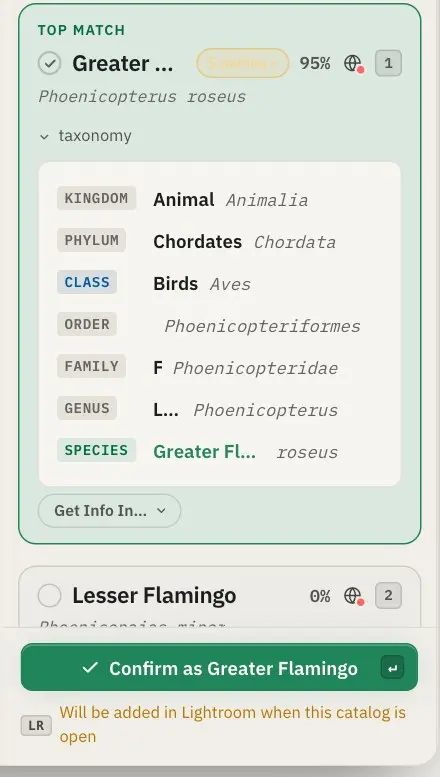
If the catalogue is closed at that moment, nothing is lost: the photo view says "Will be added in Lightroom when this catalog is open", and a Keywords to sync banner counts the pending photos. Apply opens each catalogue in turn and writes them.
Specio never writes into the files of a Lightroom photo — no .xmp sidecar, no JPEG rewrite. The catalogue is the reference.
What ends up in your keyword list
Each species is filed under a root keyword — Specio Tree Of Life by default, which you can rename or remove. Two levels of detail are available:
- Extended — the whole classification: kingdom, phylum, class, order, family, genus, epithet, then the common name.
- Simple — the major group, the order, the family, then the name.
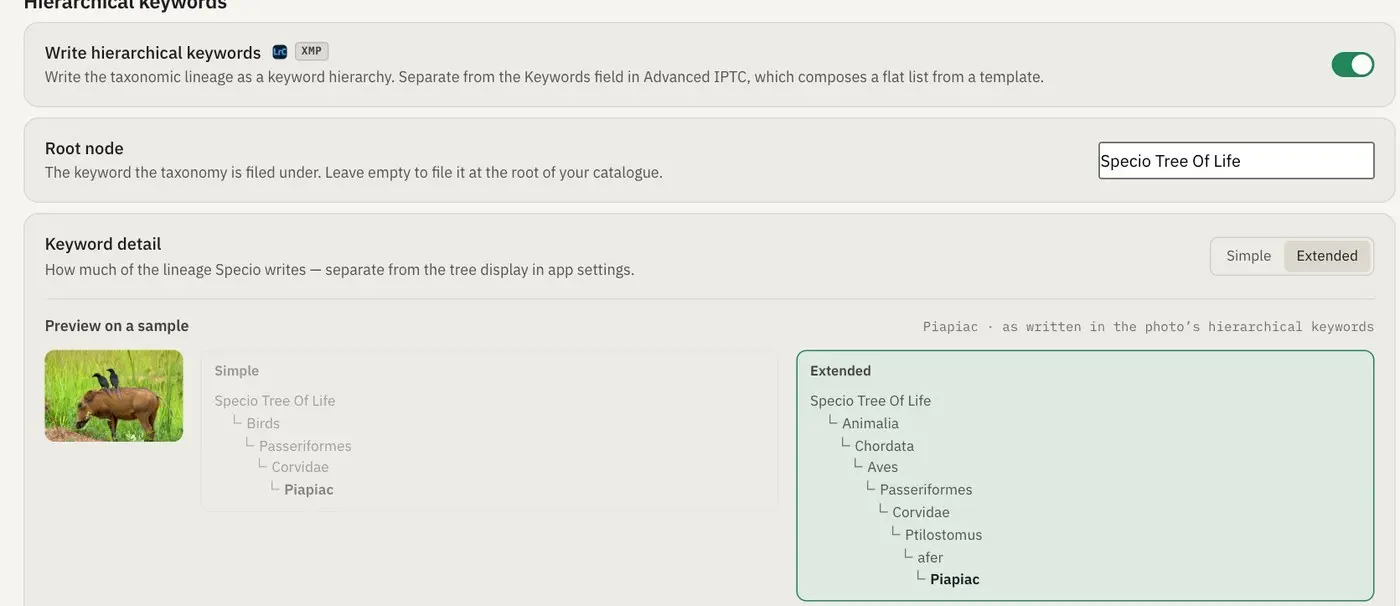
In Lightroom the whole chain exists in your keyword list, but only the leaf — the species — is assigned to the photo. Your photo is never counted as "some bird", and the leaf is the only keyword that goes out with your exports.
In your language
The leaf is written in the language you choose: the same as the species names shown in Specio, a specific language, or Latin binomials. The ranks above it stay in Latin on purpose — names for orders and families exist in only some languages, and a half-translated hierarchy would change shape from one animal to the next. Latin sorts, compares, and reads the same in every catalogue.
A concrete example
You come back from a week in Namibia with 7,000 frames. You run Analyze Full Catalog in the evening, close Lightroom, and let Specio work. The next morning, the Bulk view has sorted the detections by confidence; you confirm the most certain ones in one go and work through the rest by hand. Open Lightroom: every confirmed photo now carries its species keyword, filed under Specio Tree Of Life ▸ Animalia ▸ Chordata ▸ Aves ▸ ….
Changed your mind about a species? Correct it in Specio: the old keyword is removed and the new one written — even if the old one was in another language. ⌘Z undoes a validation and takes its keywords with it.
Key takeaways
- The plug-in installs itself; Lightroom can stay closed during analysis.
- Keywords are written only when you confirm, through Lightroom itself.
- You get the full taxonomy in your keyword list, with only the species assigned to the photo.
- Specio only removes what it wrote — your own keywords stay intact.
Going further
Try Specio on your own catalogue: the analysis runs in full, and 250 photos stay usable for free. Licences are one-time purchases, per family of life — see the Store. Large RAW catalogue? Read Analysing a large RAW catalogue: tips for speed.