Analysing a large RAW catalogue: tips for speed
Tens of thousands of RAW files? A few settings make Specio's analysis much faster and keep your computer usable meanwhile: standard previews, background priority, no sleep, and skipping blurred frames.
The first analysis of a big archive is the only one that really takes time. After that, Specio only looks at what is new. But that first pass can cover tens of thousands of RAW files, and a few choices made beforehand decide whether it finishes overnight or drags on for days.
Here is what makes the difference.
Why big RAW catalogues are slow
Recognition itself is fast — it runs on the Neural Engine of an Apple Silicon Mac, or on the graphics card of a Windows PC. What costs time is getting an image to analyse in the first place. A RAW file has to be rendered before anything can look at it, and when no ready-made preview exists, that rendering is done again for every single photo.
How to speed things up
1. Build standard previews in Lightroom first
For a Lightroom Classic catalogue, Specio analyses from Lightroom's previews. Build them first: in the Library module, Library ▸ Previews ▸ Build Standard Previews. Without them, every RAW has to be re-rendered and the analysis is far slower. Specio warns you if preview coverage is too low.
2. Close Lightroom, keep analysing
Specio reads the catalogue and its previews directly, so Lightroom can be closed during the analysis — it is only needed again when keywords are written. Use Analyze Full Catalog for the first pass, then Sync Now afterwards: it only processes photos added or edited since.
3. Choose speed or comfort
The settings button next to the progress bar holds the two options that take effect immediately:
- Keep my Mac responsive (macOS) — when Specio is not the active application, it drops to a lower priority. Your other applications stay fluid, the fan calms down; in exchange, background analysis runs slower. In the foreground, Specio is as fast as ever.
- Prevent the computer from sleeping — an analysis stops if the computer sleeps. Leave this on for a run started in the evening.
4. Don't spend time naming blurred frames
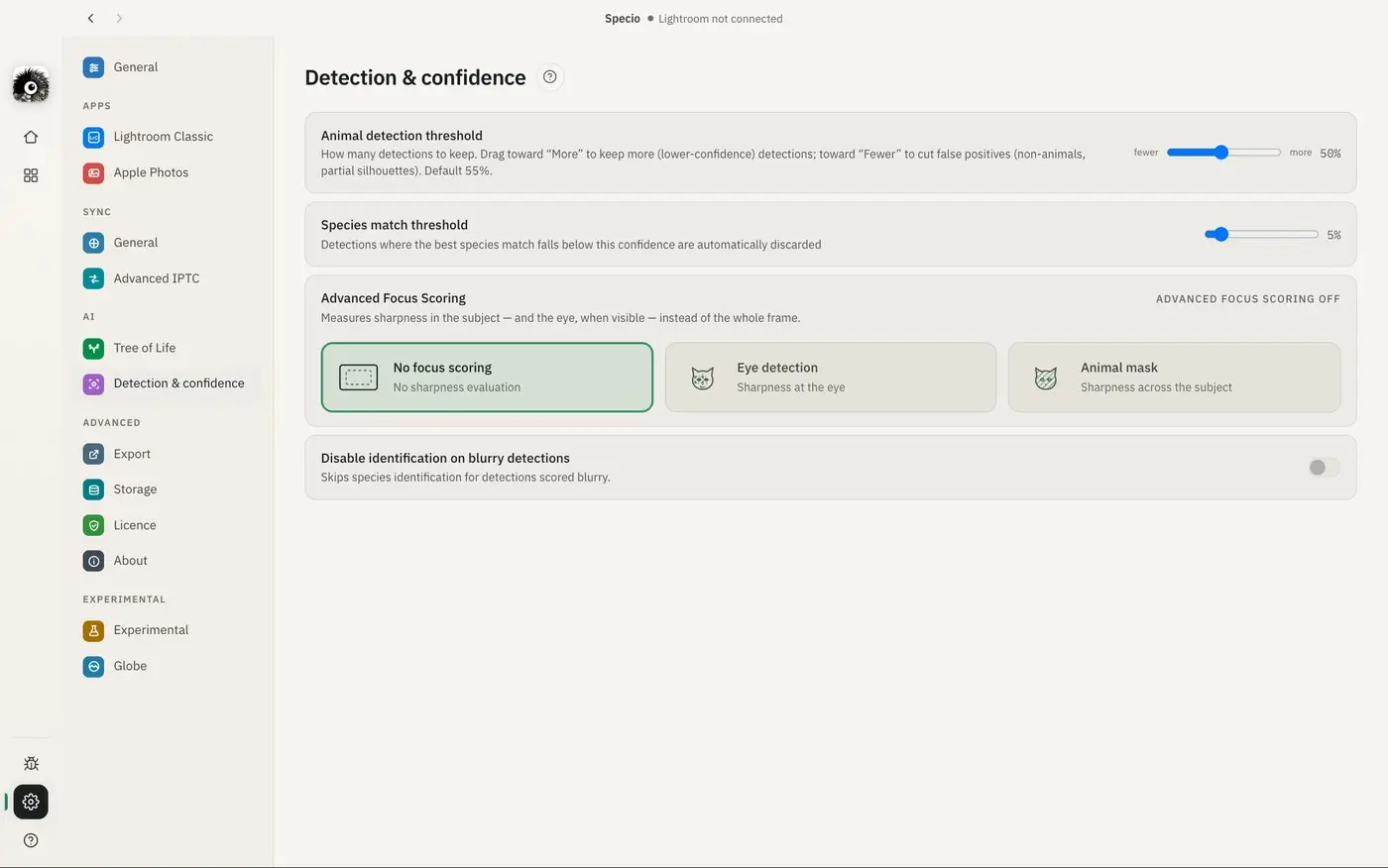
Specio judges focus zone by zone, and Settings ▸ Detection & confidence can refine it to the animal's silhouette, or to its eye when it is visible. Turn on Disable identification on blurry detections and Specio skips species recognition on zones judged blurred: on a large library, that avoids spending computing time naming frames you won't keep.
5. Let the queue do the rest
Several sources to process? Start them all. Each new analysis joins a queue and starts as soon as the previous one finishes — a Lightroom catalogue, then a folder, then Apple Photos — without you coming back to trigger each one. Specio deliberately analyses one source at a time: recognition already uses the whole machine, so running them in parallel would be no faster.
A concrete example
A 60,000-photo Lightroom catalogue, mostly RAW. On Friday afternoon, build standard previews in Lightroom. In the evening, start Analyze Full Catalog from Specio, switch on Prevent the computer from sleeping, and close Lightroom. If you keep working on the machine, tick Keep my Mac responsive as well.
You can pause, resume or cancel at any time: nothing already analysed is lost. And if the counter ever stops moving with no reason shown, Specio says for how long, rather than leaving you in front of a frozen number.
Key takeaways
- Build standard previews in Lightroom before a big first analysis.
- Lightroom can stay closed while Specio analyses.
- Keep my Mac responsive trades speed for comfort; prevent sleep for overnight runs.
- Skip blurred detections to save time on huge libraries.
- After the first pass, Sync Now only processes what's new.
Going further
New to Specio with Lightroom? Start with Add species keywords to Lightroom Classic automatically. More answers in the FAQ, and licences per family of life on the Store.