Sorting thousands of wildlife photos without losing a weekend
Specio's Bulk view sorts every detection by confidence, so you confirm the obvious ones in one click and spend your time only where it's needed. Every batch action can be undone.
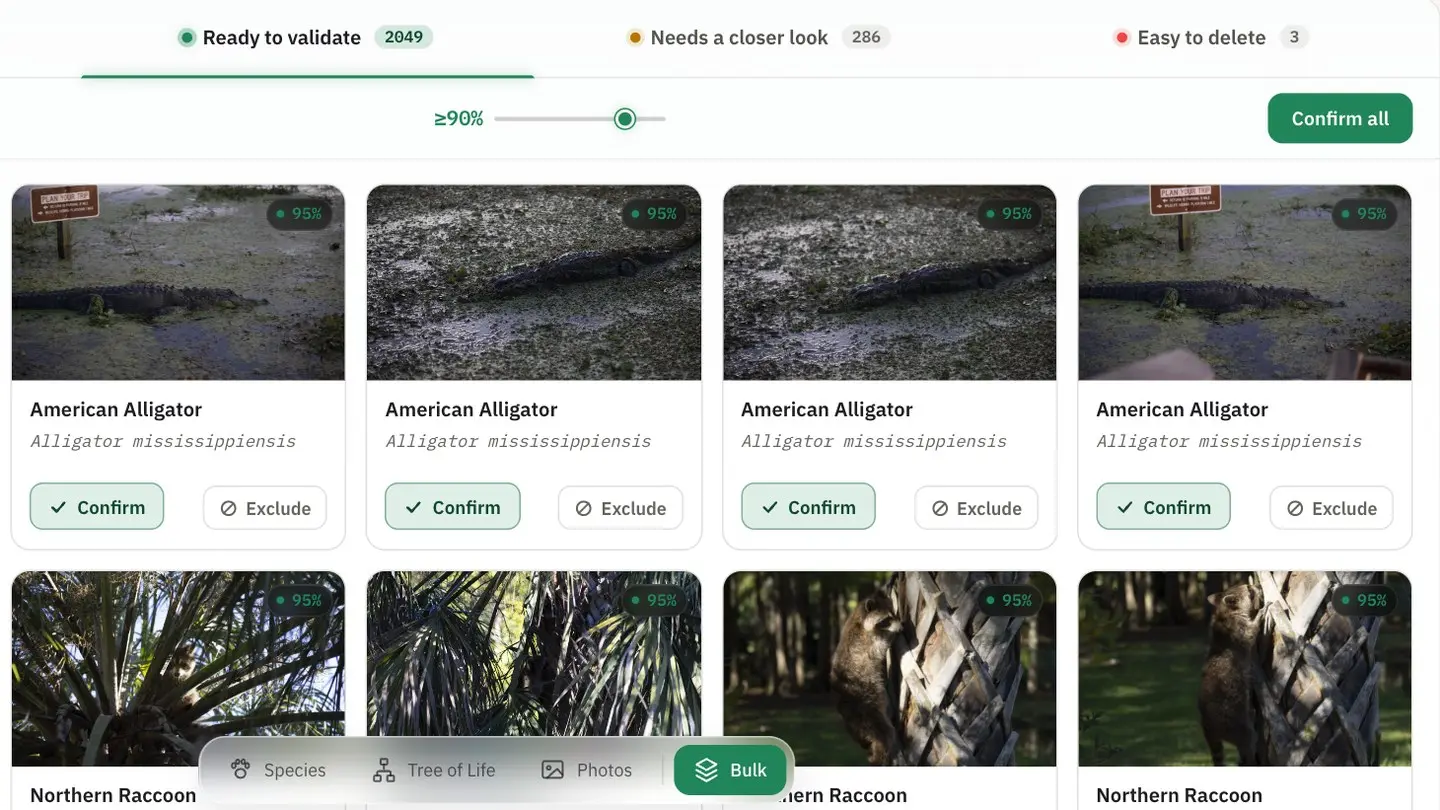
Automatic identification is only half the story. Once Specio has looked at a library of ten thousand photos, someone still has to say "yes, that's right" — and doing it one frame at a time would bring back the very chore you wanted to avoid.
The Bulk view is Specio's answer: a workshop for getting through volume, where the confident proposals go through in one gesture and your attention goes to the ones that need it.
Not every detection deserves the same attention
A sharp, frame-filling heron is not the same problem as a distant silhouette at dusk. Treating them the same way wastes time on the first and rushes the second. The right order is: clear what is certain, look at what is doubtful, throw away what is clearly wrong.
How Specio sorts at scale
Four tabs, by confidence
In the catalogue, the floating mode bar at the bottom offers four views: Species, Tree of Life, Photos — and, set apart, Bulk. Bulk sorts every detection into four tabs:
- To confirm — everything still waiting on your decision.
- Ready to validate — the most confident proposals, confirmable in one go.
- Needs a closer look — middling confidence; a glance is in order.
- Easy to delete — the least likely detections, to discard in a batch.
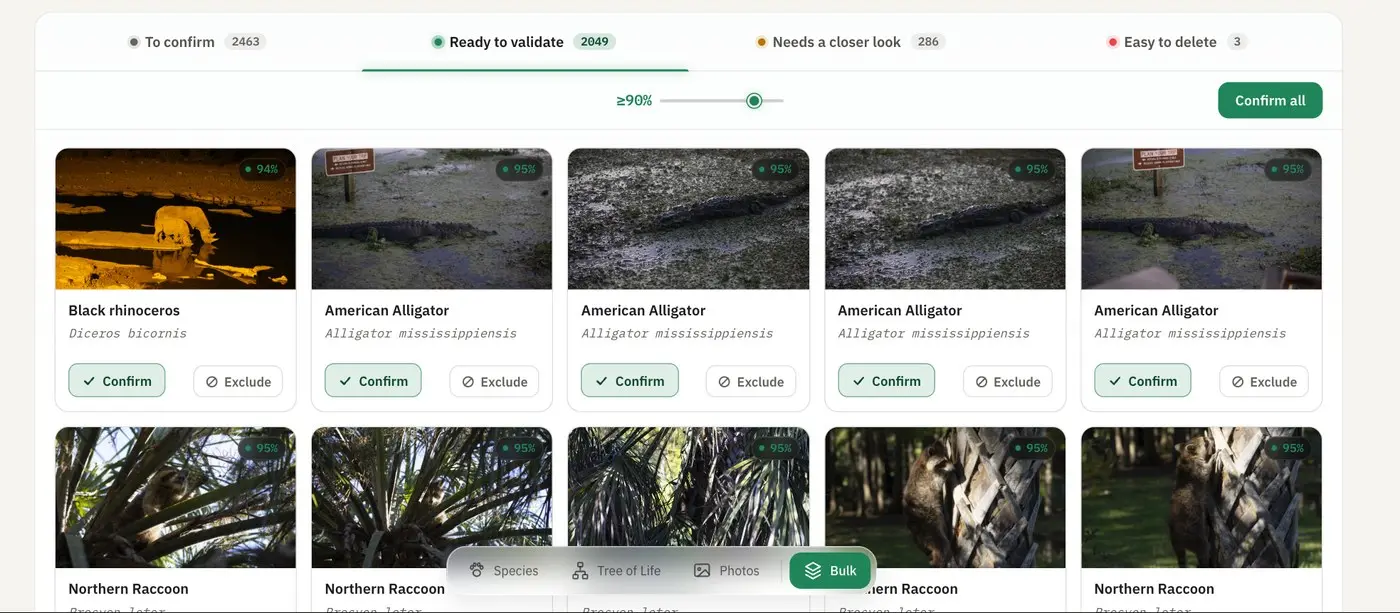
Confirm all — with a threshold you set
In Ready to validate, set the confidence slider, then Confirm all validates everything above that threshold. Each photo is confirmed on its own best candidate — not on one species shared across the batch. Tick a few cards and the button becomes Confirm selected (N). Any card can also be confirmed or excluded on its own, or left out of the batch.
Easy to delete has the mirror gesture: Reject all (N).
The Actions menu, for everything else
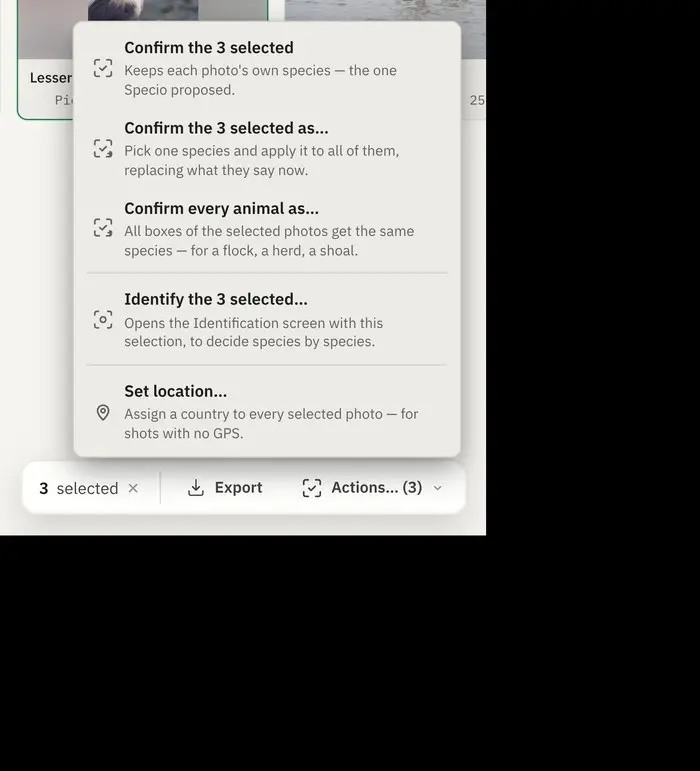
In the Photos view or in Bulk, tick several photos and a bar appears with Actions… (N):
- Confirm the N selected — each photo keeps its own proposal.
- Confirm the N selected as… — one species for all of them; ideal for a series shot on the same animal.
- Confirm every animal as… — every zone of every photo gets the species: for a flock, a herd, a shoal.
- Identify… — opens the selection in the identification view, to decide photo by photo.
- Set location… — gives a place to photos shot without GPS.
Nothing is irreversible
Every bulk action can be undone with ⌘Z, and the keywords it wrote are removed with it. At the end of a group validation, Specio tells you how many photos were confirmed and as what — and how many it left alone because they hold several animals and it won't guess which one you meant. For those, Confirm every animal as… is the answer.
A concrete example
A week in Florida: 2,000 photos with animals. In Ready to validate, set the slider to 90% and press Confirm all — alligators, raccoons, egrets go through in one gesture. Then open Needs a closer look: a few hundred frames, where you tick a run of shots of the same anhinga and use Confirm the selected as…. Finally, Easy to delete and Reject all clear the reflections and tree stumps taken for animals.
What is left in To confirm is the genuinely hard part — and that is where your expertise is worth spending.
Key takeaways
- Bulk sorts detections into four tabs by confidence.
- Confirm all works above a threshold you choose, each photo on its own best candidate.
- The Actions menu handles series, flocks and photos without GPS.
- Every batch is undoable with ⌘Z, keywords included.
Going further
For the photo-by-photo side — one zone per animal, Enter to confirm and move on — see Identify the wildlife in your photos, on your own computer. Try Specio free on your own library, then choose your families on the Store.