Where and when you photographed: the globe and the timeline
Specio's Home screen puts your wildlife photos on a globe and a timeline. Select a region or a period and see which species you found there — and give a place to photos shot without GPS.
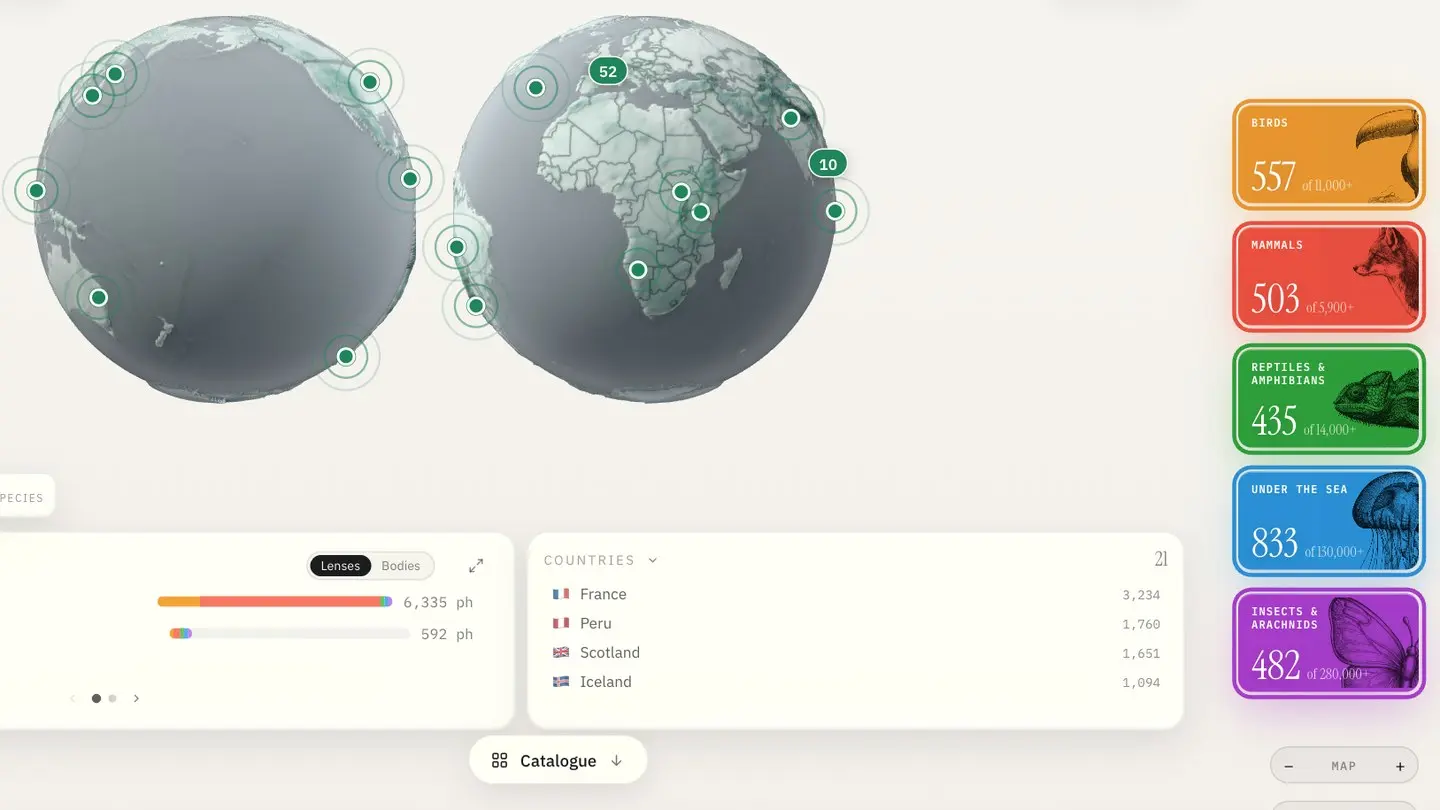
Every wildlife photo answers three questions: what, where and when. Specio identifies the "what". Its Home screen is built around the other two — a globe of every place you have photographed, and a timeline of every period — so that your archive reads like a field journal rather than a folder list.
A library you can't see the shape of
After a few years, it gets hard to remember which trips produced what. Which species did you photograph in Iceland? Was the otter in 2019 or 2021? How much of your work is birds, and how much is everything else? None of that is visible in a grid of thumbnails.
How Specio shows it
The globe
Each dot on the globe is a place where you have photographed. It handles like an online map: scroll or pinch to zoom, drag to turn it. Hover a dot to see its name and a small grid of its best photos; dots too close together merge into a badge with their count, and a click zooms in on them. Zoom all the way out and the globe opens into two hemispheres, the whole world at a glance.
Click a dot to select it; ⇧ or ⌘-click adds more; ⇧-drag draws a rectangle around a whole region.
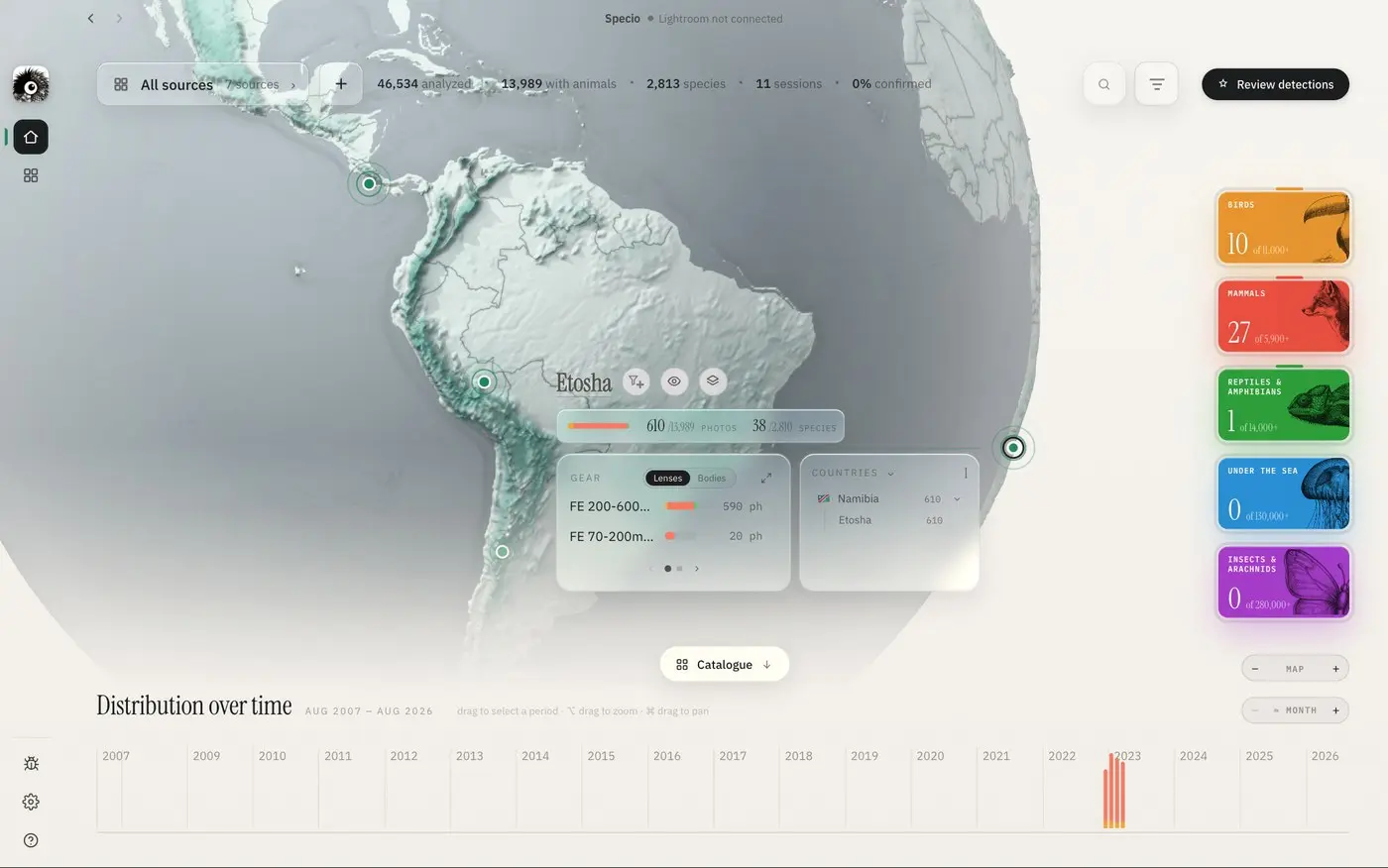
The block that describes your selection
The information block then describes exactly what you selected — or, with nothing selected, whatever is on screen. Its widgets show:
- a coloured bar of the breakdown by family, with photos and species counts;
- the threatened species you photographed there, by IUCN Red List category;
- your gear — which lenses and bodies you used;
- the countries and their places.
A funnel button turns the selection into a search filter; an eye opens its photos.
The five families
On the right, one card per major group — birds, mammals, reptiles and amphibians, under the sea, insects and arachnids. The big number is the species you have found, set against the number of known species in that group, and a ring fills up as your selection covers it.
The timeline
At the bottom, Distribution over time shows when your photos were taken, one bar per period, coloured by family.

Drag across it to pick a period; the globe, the blocks and the family cards follow in real time. Change the unit — day, week, month, quarter, year — with the − + buttons. Then the Catalogue button opens the grid on exactly what you're looking at: places, period and filters come with you.
Photos without GPS
Many photos carry no coordinates at all — a camera without GPS, a phone left in a pocket. They have no country, stay off the globe, and can't be found by place.
Select them in the catalogue — a source, a period on the timeline, ⌘A — and choose Actions ▸ Set location…. Search for a place by name, or click the map and drag the pin. Tick Skip the photos that already have a location to leave real GPS untouched. One gesture locates a whole day's shooting.
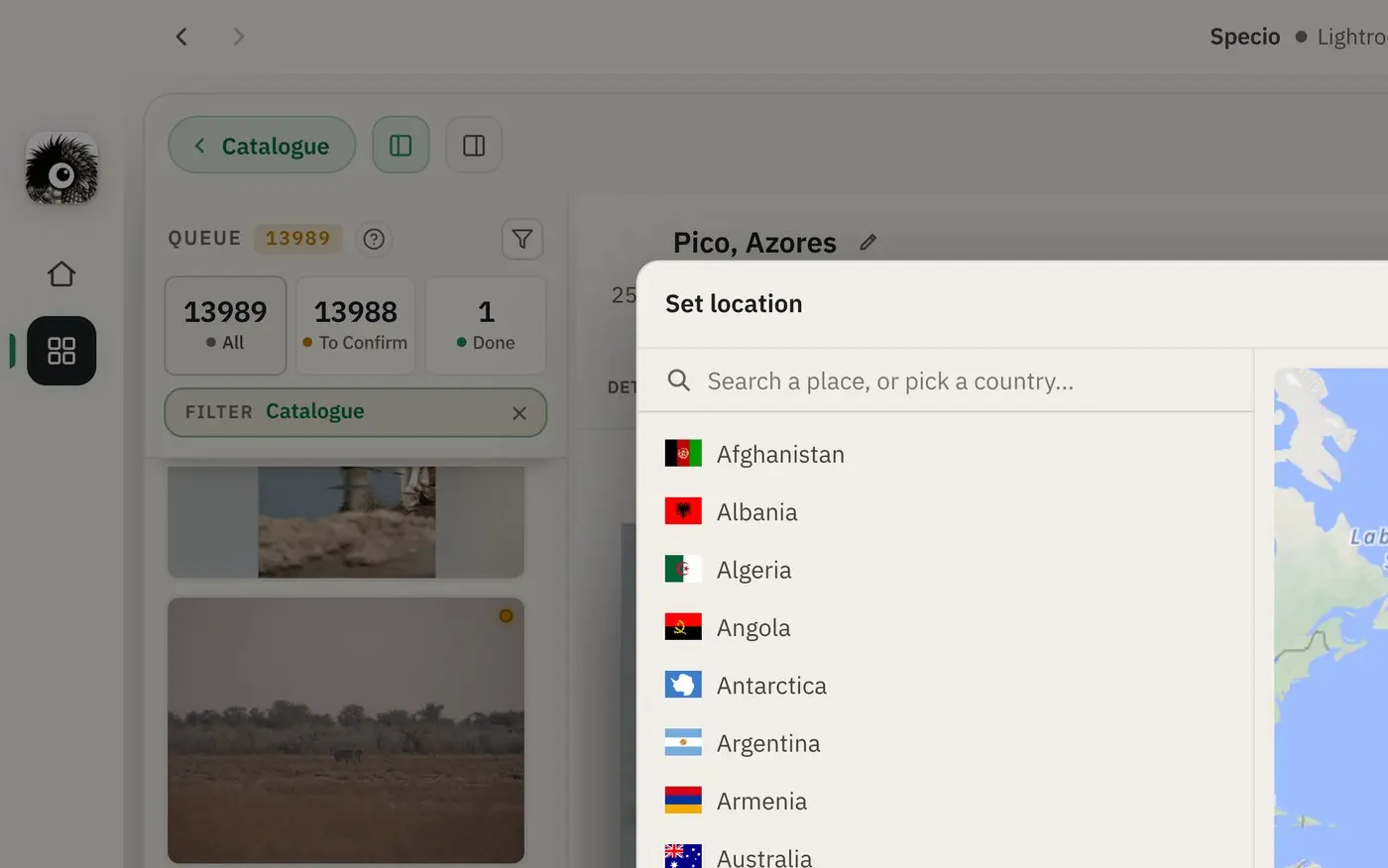
A location set this way counts like real GPS for the globe, the search box and the filters. It also helps identification: species proposals take the place into account, and update once a location is set. By default it stays inside Specio; switch on Auto-write GPS when setting a location to write it into your files too.
Key takeaways
- The globe shows every place you photographed; select one or a whole region.
- The timeline filters everything by period, from a day to a year.
- Blocks show families, threatened species, gear and countries for your selection.
- Set location… gives a place to a whole batch of photos shot without GPS.
Going further
Curious about the threatened species in your archive? Read Threatened species in your archive: the IUCN Red List in Specio. Try Specio free on your own library, then choose your families on the Store.