Your photo library as a tree of life
Specio files every animal you've photographed into the classification of life, from kingdom to species. Browse your archive by order, family or genus — and see how your sightings fit together.
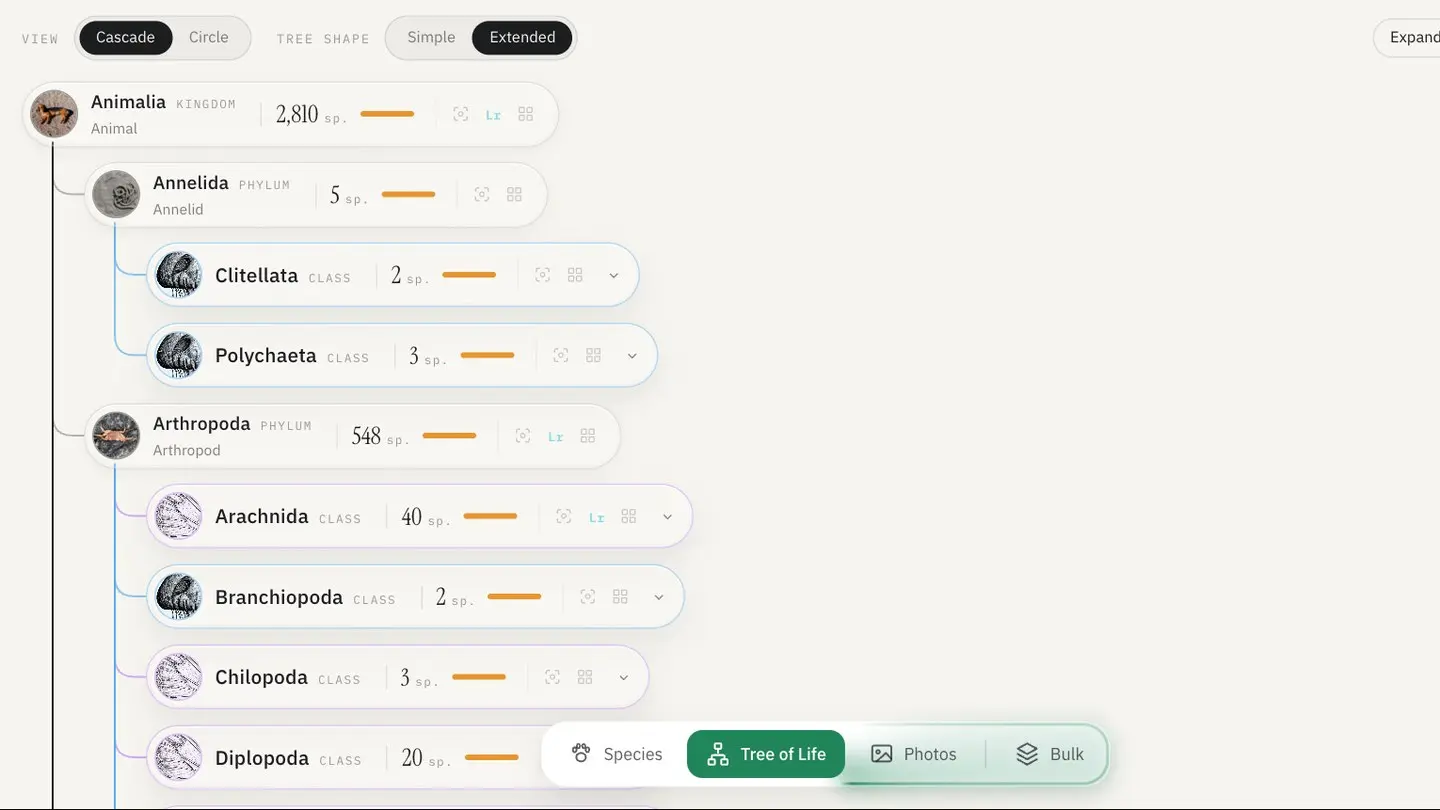
A list of species tells you what you have photographed. A tree tells you how it fits together: that your three kingfishers belong to two different families, that you have far more Passeriformes than you thought, or that a whole order of mammals is still missing from your archive.
Specio's Tree of Life view arranges your entire library through the classification of life, from kingdom to species — built from your own photos.
Folders and albums only go so far
Most libraries are organised by date or by trip. That is the right way to find "the Kenya photos", and the wrong way to answer "show me every raptor I've ever photographed". Flat keyword lists don't help much either: "Grey Heron" and "Great Egret" sit apart in alphabetical order, although they belong to the same family.
How Specio builds the tree
Every confirmed species, in its place
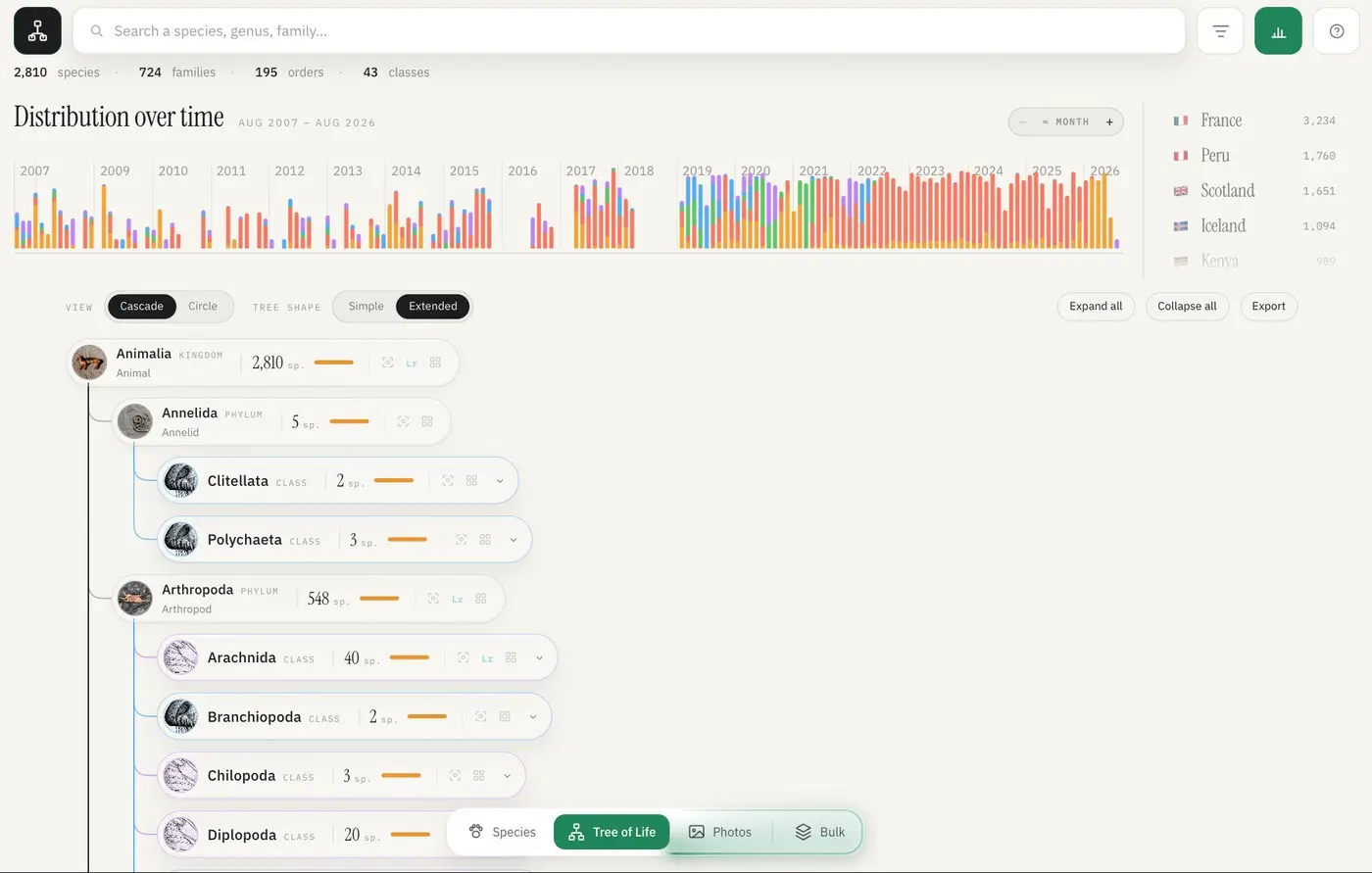
Every species Specio identifies comes with its full lineage — kingdom, phylum, class, order, family, genus, species. The Tree of Life view assembles them into a single tree covering your whole library. At the top, four counters sum it up: species identified, families, orders and classes.
Reading a branch
Each branch shows:
- its species count,
- its confirmed / to confirm counters,
- a strip of photos from that branch.
Expand or collapse a branch, or the whole tree at once. Click a thumbnail to open the photo, with the whole branch as its queue — so you can review every member of a family one after the other.
Simple or Extended
Two tree shapes are available:
- Simple groups animals into broad, familiar categories — birds, mammals, under the sea…
- Extended shows the full scientific hierarchy, every intermediate rank included.
The same choice exists separately for the keywords Specio writes, so you can browse in Extended and still keep your Lightroom keyword list short.
Search and export
Search accepts common and Latin names alike, ignoring accents and capitals. A 🌊 badge marks marine species. And the whole tree exports as CSV, for a life list, a spreadsheet, or a trip report.
A concrete example
Open the tree on all your sources and expand Aves. The order counters immediately show where your photography leans — perhaps 40 species of Charadriiformes from coastal trips, and only a handful of owls. Click into Strigiformes and the strip shows every owl photo you have, ready to review in one queue.
Combine the tree with the timeline above it: drag across a single year, and the tree recalculates for that year alone — your year list, by family.
Key takeaways
- The Tree of Life view files your whole library from kingdom to species.
- Each branch shows species counts, confirmation status and photos.
- Simple for broad groups, Extended for the full hierarchy.
- Export the tree as CSV for your own lists.
Going further
The same classification ends up in your keywords — see Add species keywords to Lightroom Classic automatically. To see your library on a map instead, read Where and when you photographed: the globe and the timeline. Licences are sold per family of life on the Store.